Migrating Courses to a New LMS: The Move, and What You Stop Maintaining
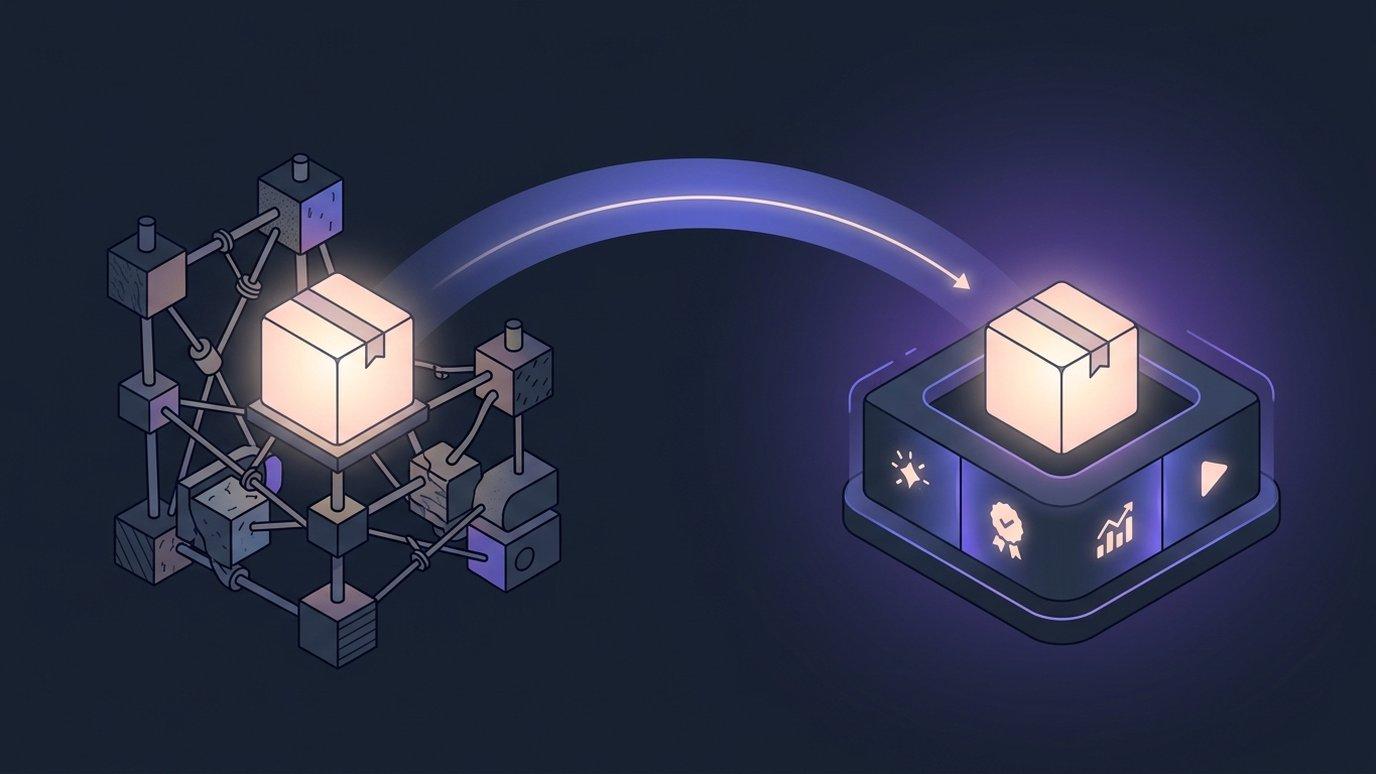
Nobody changes learning platforms because they dislike their courses. The courses are the one thing they are sure about — years of writing, a question bank that took three cohorts to get right, a sequence that finally works. What people get tired of is everything standing around the courses.
This post is about both halves of that: the mechanics of moving the content, which are more boring than you expect, and the operational weight you put down afterwards, which is the part people actually write to us about.
The pattern people are tired of
It isn't one platform's fault, and it isn't a criticism of anyone's software. It's a shape that self-hosted, extensible learning platforms tend to grow into once an academy has been running one for a few years:
- A server that is now yours. Patching, backups, disk, uptime, and a maintenance window that has to be booked around teaching.
- An upgrade cycle you brace for. The major version lands and the real work is discovering which add-ons made it across.
- A plugin for every capability. Certificates from one, video conferencing from another, reporting from a third — each with its own maintainer, its own release rhythm, and its own opinion about the version you are running.
- AI as one more plugin. A chat box bolted to the side of a course, which is the one place it cannot see the course from.
- Three invoices to hold one learner journey together. Plus three support queues, on the morning something breaks.
Every one of those decisions was sensible when it was made. Together they add up to an operations job nobody applied for — usually done by the person who is also meant to be building next term's content.
The move, step by step
The migration itself is four steps, and the first one happens entirely inside the platform you already run.
- Export one file. In Moodle: Course administration → Backup, which gives you an .mbz. In Canvas: Settings → Export Course Content, which gives you a Common Cartridge. Authoring tools and older systems generally produce a SCORM package. One file per course, whichever route you take.
- Upload it. Up to 2 GB, which is the size that matters when a course is mostly video and slide decks. Media-heavy exports do not have to be trimmed first.
- Preview, or close the tab. Up to 100 MB you see the module → lesson → activity tree that would be created, item by item, and nothing is written until you commit. A larger package goes to the background pipeline instead: there is no on-screen preview, because the reading happens after you have closed the tab, and you are emailed when the course is ready.
- Then edit. What lands is native, editable content — not a frozen archive playing in a frame. Rewrite a paragraph, replace a dated reading, or regenerate a section with the AI tools.
Two paths, said plainly: packages up to 100 MB are previewed and committed in one sitting; packages up to 2 GB import in the background and email the person who started them. We would rather write that down than let you find it out on the day.
Grounding is a separate question, asked outright during the import — ground this course in Curriculum Intelligence? — with no answer pre-selected. Say yes and the imported material becomes that course's knowledge base, so the tutor answers from your content and the generators write in your curriculum's language from day one. Say no and nothing is embedded; the course still imports, and you can ground it later. Reading the package and building the course out of it cost no AI at all.
If you want the format-by-format detail — what SCORM, Common Cartridge and a Moodle backup each preserve well, and how question banks travel as QTI — that's a post of its own: Switching LMS without losing your courses.
The migration page lays the same four steps out with the formats, the size limits and the skip-list rules side by side — worth reading before you export anything.
See how migration worksThe skip list is the deliverable
The single most useful output of a migration is not the course. It's the list of things that did not come across, named by title, with the reason. Hidden activities the old course kept out of students' sight. Interactive embeds that need their original engine. Question types that cannot be marked without the platform they were written for.
You get that list on the preview when you previewed, and in the completion email when the import ran in the background. An import that reports “completed successfully” while quietly dropping a dozen items is worse than one that hands you a list — because the list is how you find out before a student does.
One related choice worth knowing before you plan a migration weekend: an imported quiz arrives as authoring material, not as a published assessment. You read the questions, keep the ones worth keeping with Save to Bank…, and then decide what that bank becomes. Nothing an import brings in reaches a learner until someone has looked at it.
What's already there when you arrive
This is the half that decides whether the move was worth it. On EduGears AI LMS these are platform features, not a shortlist to go shopping for:
| What academies usually assemble | What's built in here |
|---|---|
| An AI add-on, licensed separately | 30 AI tools in the platform — course generation from a syllabus, quizzes, rubric-based grading, slides, study guides, worksheets — all grounded in your own materials |
| A chatbot beside the course | Cog, the context-aware AI chat dock: an Ask Cog bubble on every page that already knows the course, lesson or quiz in front of you |
| A certificate plugin plus a verification workaround | Completion certificates with QR codes, a public verification page in your branding, Open Badges 3.0 credentials, validity windows and recertification |
| A third-party video subscription and a link-sharing habit | Live video sessions scheduled from a course, a classroom or the calendar, joined in the browser |
| A reporting add-on and a spreadsheet | Role-based dashboards, a report registry with filters and exports, and one learner's whole record on a single page |
| A theme, edited after every upgrade | White-label branding on your own domain, resolved before anyone signs in — including notification emails |
Cog is worth a sentence on its own, because it is the thing instructors notice first. Learners get the AI Tutor: it knows the lesson they are on, answers from the course's own materials, and does not surface quiz or answer-key material before or during an attempt — so it is safe to leave on during assessment. Instructors get the AI Assistant in the same dock, and can toggle to the Tutor to see exactly what a learner would be told. There is no administrator step; it is on for every tenant.
Bring one course over before you decide anything. Export it from where it lives today, and we'll walk the import, the skip list and the result with you.
Book a migration walkthroughYou don't have to move everything at once
The all-or-nothing migration is a myth that keeps academies where they are. EduGears AI LMS is an LTI 1.3 platform in its own right: it hosts external tools with OAuth2 security, returns grades through Assignment & Grade Services, and syncs rosters through Names & Roles. The specialist tools your instructors depend on — the proctoring service, the lab simulator, the publisher's content — launch here the same way they launched there.
So a sensible migration is usually a program at a time: move one catalog, run it for a term alongside what you already have, and keep going when it has earned it.
And judge us by the exits, not the entrance. Whole courses export as SCORM 1.2, SCORM 2004, Common Cartridge 1.3 or Moodle .mbz; question sets export as QTI 2.1 or Moodle XML. No penalty and no support ticket. We would rather earn the renewal than lock the door.
When not to switch
Sometimes the honest answer is: don't. If your current platform is serving your teaching well and the only real gap is AI, there is a smaller move available. EduGears AI for Moodle and Canvas is an LTI 1.3 tool that puts the same 30 AI tools, Cog among them, inside the courses your instructors already teach in — grades passed back to the gradebook you already run, and nothing to migrate at all.
Switch when the operations are the problem. Add the AI layer where you are when the operations are fine. We will tell you which one we think you are on a call, including when it's the one that makes us less money.
FAQ
How long does moving a course actually take?
A single course is usually minutes: export the file, upload it, and either commit the preview or wait for the completion email. The part that takes real time is the review afterwards — reading the skip list, deciding what to rebuild, and publishing the quizzes that arrived as authoring material. Plan a migration around review capacity, not upload speed.
What size of package can we upload?
Up to 2 GB, for Moodle .mbz backups, Common Cartridge .imscc files and SCORM packages alike. Up to 100 MB the import is previewed and committed in one sitting; above that it runs in the background and emails the importer when the course is ready — or tells them plainly why it failed.
Does importing a course feed our material into the AI?
Only if you say so. The import asks, as an explicit question with no answer pre-selected, whether to ground that course in Curriculum Intelligence. Answer yes and the material becomes that course's knowledge base; answer no and nothing is embedded, and you can change your mind later.
Can we keep the LTI tools we already pay for?
Yes. EduGears AI LMS is an LTI 1.3 platform, so external tools launch from your courses here with OAuth2 security, grade passback through Assignment & Grade Services, and roster sync through Names & Roles.
What if we start the migration and change our minds?
You leave with your courses. Whole courses export as SCORM 1.2, SCORM 2004, Common Cartridge 1.3 or Moodle .mbz, and question banks export as QTI 2.1 or Moodle XML — at any time, with no penalty and no support ticket.
Vedi la tua accademia su EduGears AI LMS
Prenota una demo e ti mostreremo un tenant dal vivo brandizzato come la tua accademia — il tuo nome, i tuoi colori, il tuo dominio.
Prenota una demo →