Your AI Assistant Can Build the Entire Course: Connect Claude, ChatGPT or Copilot to EduGears AI LMS
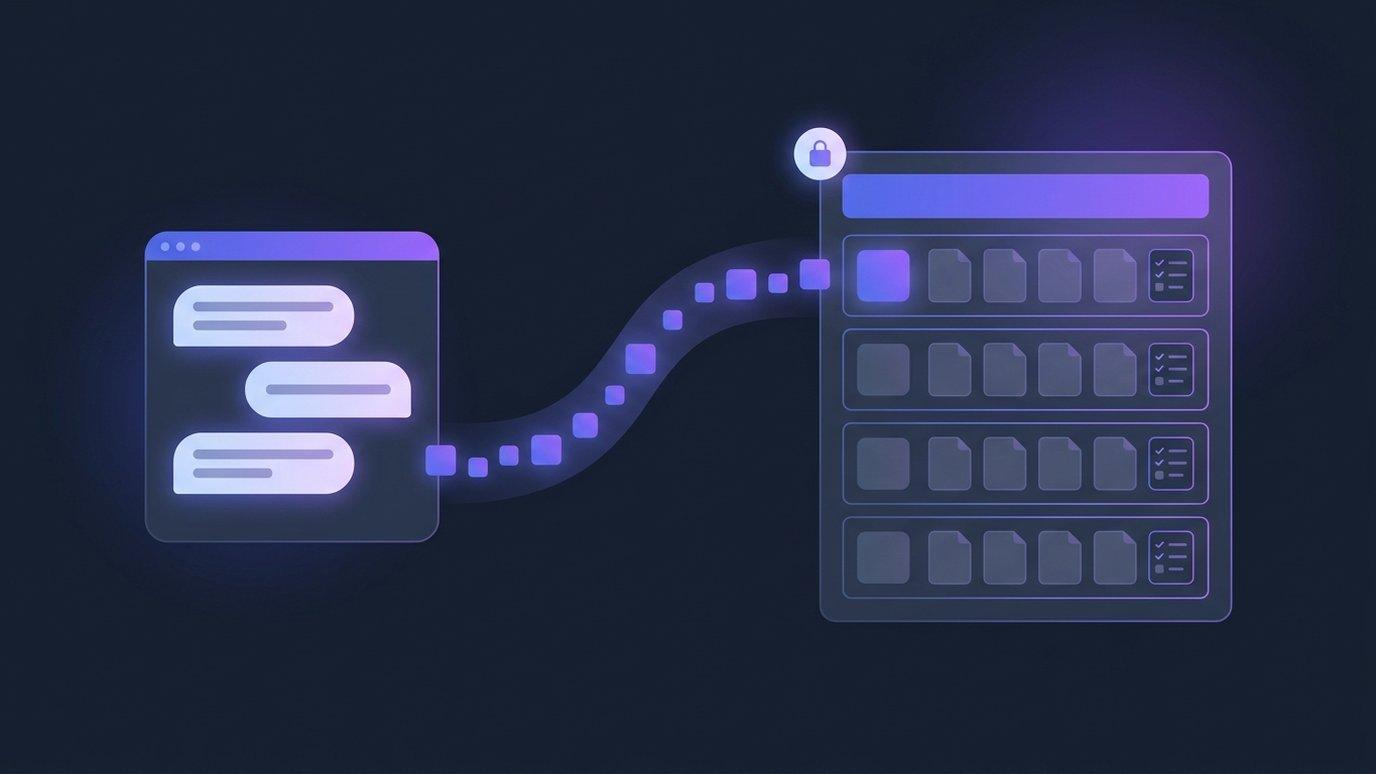
Plenty of teachers now plan with a chat assistant. They describe the course they want, go back and forth on the sequence, ask for readings and practice questions, and end up with an outline they like. Then the second job starts: opening the LMS and rebuilding all of it by hand — one module, one page, one question at a time.
EduGears AI LMS removes that second job. Teachers and administrators can now connect the assistant their institution already uses — Claude, ChatGPT or Microsoft Copilot — directly to their EduGears AI LMS platform. Ask for a course in the chat, and the assistant builds it where your learners will actually take it: the course, its modules, the lesson pages and the quizzes, held as a draft until you decide it is ready.
The second job after the chat
The rebuild is where the time goes. Formatting survives a copy and paste badly, quiz questions have to be re-entered with their answer keys, and every change agreed in the chat means another round of edits in the platform. The assistant did the thinking with you; the LMS still needed a person to do the typing.
Connecting the two closes that gap. The assistant stops being a place where course material is drafted and becomes a way to put course material into your platform. You keep the conversation you were already having — the difference is what happens at the end of it.
What arrives in your platform
A single request can produce a whole course. Ask for, say, an introductory food-safety course for new kitchen staff with five modules, each with lesson pages and a short quiz, and your assistant creates exactly that in EduGears AI LMS, then tells you what it made and where. Not text to paste — real course material:
- The course itself, with its structure in place.
- Modules and lesson pages. The assistant writes the content; EduGears AI LMS holds it in the course's structure and formats it for learners.
- Quizzes and practice sets with multiple choice, true/false, short answer and essay questions, with answer keys and explanations. Questions render properly in the platform, mathematics included.
- Additions to courses you already teach. A new module for next term, extra pages, another quiz — the assistant can list the courses it may work in and what is already in them, so follow-up requests land in the right place.
Because it is one conversation, refinement works the way it does in any chat: “make module three more hands-on”, “add a practice quiz before the final one”, “split the long page in module two”. Each follow-up changes the course in your platform rather than producing another block of text for you to move.
A draft until you publish it
An assistant that can write into your LMS needs a clear rule about what learners see, and the rule is simple: you are still the publisher.
- A course your assistant builds is created as a draft. Learners cannot see it until you publish it.
- Anything the assistant adds to a course that is already live arrives hidden, and appears only when you choose.
- You review and edit in EduGears AI LMS with the same tools you use for content you wrote yourself.
The assistant drafts; you decide what goes live. Nothing it creates reaches a learner without you.
Connecting uses the sign-in you already have
There is nothing for IT to install and no API keys to request. A teacher or administrator sets it up from their own assistant in about two minutes:
- Add a custom connector in your assistant (some call it an app or an MCP server) and paste your EduGears AI server address — it is on your account page in EduGears AI LMS, with a copy button.
- Sign in as usual. Your assistant opens your platform's EduGears AI sign-in page. Sign in with your normal account and approve the connection.
- Ask for a course. Describe what you want; the assistant confirms what it created and where it landed.
Because the connection runs through your own EduGears AI LMS account, the assistant works within what that account may do in your platform. Each teacher approves their own connection.
What the connection leaves out
The connection is deliberately narrow. It covers course material — reading your course list and content, and creating courses, modules, lesson pages and quizzes — and nothing else.
- No student work, grades or gradebooks. Submissions, grades and gradebooks are not part of the connection, and the consent screen says so before you approve it.
- Staff only. Teachers and administrators can connect an assistant; students cannot.
- Visible to administrators. Administrators can see every connected assistant in the organization and disconnect any of them.
- Easy to switch off. Disconnect at any moment and the assistant loses access immediately. What it already created stays in EduGears AI LMS, like any content you made by hand.
Built on the AI you already license
Many institutions have already chosen an AI assistant and signed the agreement that goes with it. The connector builds on that choice instead of adding another one. It uses the Model Context Protocol (MCP), the open standard chat assistants use to work with outside tools, so it works with any assistant that supports custom MCP connectors. Today that includes:
| Assistant | Where it works |
|---|---|
| Claude | Paid plans |
| ChatGPT | Plans with connector support |
| Microsoft Copilot | Copilot Studio agents |
The writing happens inside your institution's own assistant, under the agreement it already has. EduGears AI receives the finished course material — not your conversation. That makes the connector a way in for the AI your staff already use, rather than another AI product to evaluate. It sits alongside the AI course builder inside EduGears AI LMS; teachers can use whichever suits the course in front of them.
Teaching in Moodle or Canvas?
Building whole courses is specific to EduGears AI LMS, where we hold the course itself. If your institution teaches in Moodle or Canvas, the same kind of connector is available for the EduGears AI tool there, where it writes quizzes and modules into the teacher's library. Connecting your AI assistant to Moodle or Canvas explains how that version works.
Getting it switched on
The connector is rolling out now and is switched on per organization while we onboard the first institutions. If you want your teachers building courses from their own assistant, contact us and we will enable it for your platform. The AI assistant connector page has the full setup and the guardrails in one place.
Tell us about your platform and the assistant your staff use, and we will switch the connector on for your organization.
Ask us to switch it onFAQ
Can an AI assistant really build a whole course in EduGears AI LMS?
Yes. From one conversation, a connected assistant can create a new course and fill it with modules, lesson pages and quizzes. The course stays a draft, invisible to learners, until you publish it.
Which assistants can I connect?
Any assistant that supports custom connectors over the Model Context Protocol (MCP). Today that includes Claude (paid plans), ChatGPT (plans with connector support) and Microsoft Copilot Studio agents.
How do I connect my assistant?
Add a custom connector in your assistant and paste the EduGears AI server address from your account page in EduGears AI LMS. Your assistant then opens your platform's sign-in page; sign in with your usual account and approve the connection. It takes about two minutes and needs no API keys.
Can the assistant see my students' work or grades?
No. The connection covers course material only. Student submissions, grades and gradebooks are not part of it, and the consent screen states that before you connect.
Can students connect an assistant?
No. Teachers and administrators connect with their own accounts, and administrators can see and disconnect every connected assistant in the organization.
What happens to the content if I disconnect?
It stays. The assistant loses access immediately, and everything it created remains in EduGears AI LMS like content you made by hand.
How do we get the connector?
It is rolling out now and is switched on per organization. Contact us and we will enable it for your platform.
See your academy on EduGears AI LMS
Book a demo and we'll show you a live tenant branded as your academy — your name, your colors, your domain.
Book a demo →