LMS analytics & reporting
See how your academy is doing, all term long
Dashboards for every role, reports you can filter and export, and a marking queue that keeps work from waiting.
1 · Every morning
How is the academy doing today?
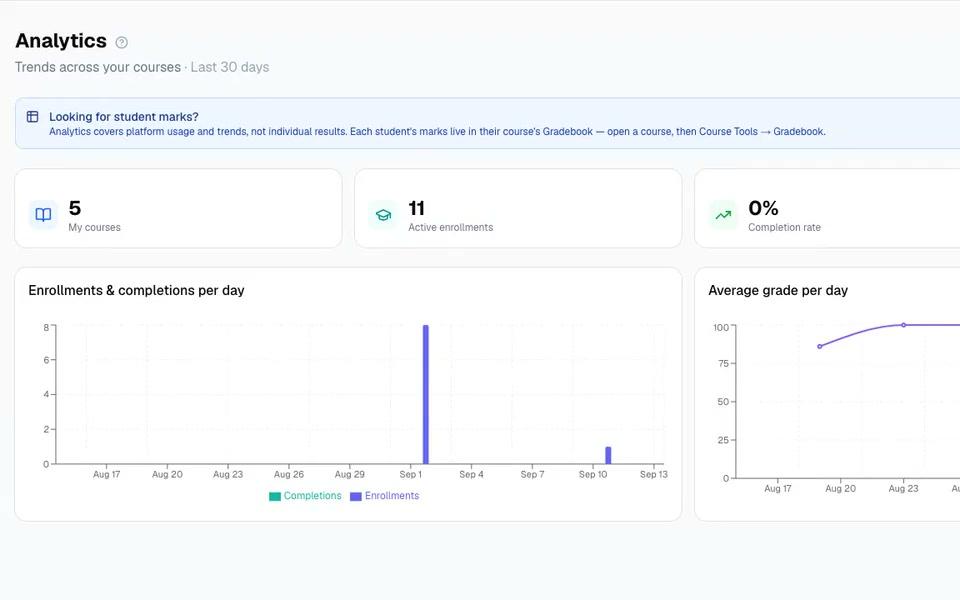
Everyone signs in to a dashboard made for their role. Owners see the whole academy, instructors see the courses they teach, and learners see what to do next.
- Role dashboards for owners, instructors and learners.
- 30-day trends for active enrollments, completion rate and average grade, with daily charts.
- Needs attention: learners with low scores in the last 14 days, right on the instructor dashboard.
Three dashboards, one sign-in
Owner
Key numbers, 8-week enrollment and grade charts, users by role and recent activity.
Instructor
My courses, students and who was active this week, a course health table, and who needs attention.
Learner
Continue learning, what's due in the next 7 days, recent grades and certificates.
2 · When you need the detail
Need the numbers behind the dashboard?
Eight reports are built in, from enrollment trends to certificates. Filter them, chart them your way, and take them into your next meeting.
- Eight built-in reports, from Student Progress by Course to Certifications & Completions.
- Filters, sorting and bar, line, area or pie charts, with CSV, PDF and PNG export.
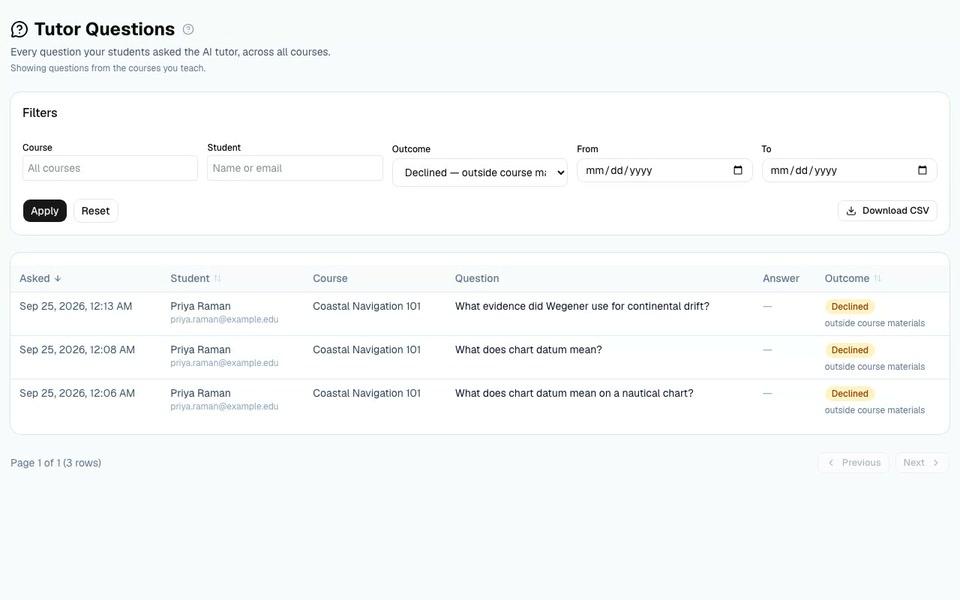
- Tutor Questions shows what students asked the AI tutor, and whether it answered.
3 · After they hand in
Nothing waits unmarked
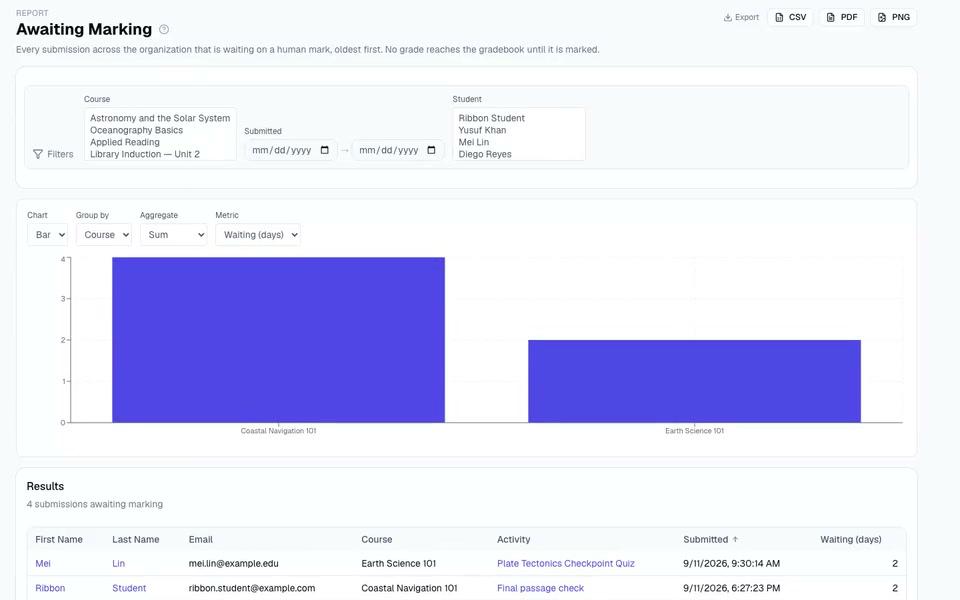
Awaiting Marking lists every submission still waiting on a person, oldest first. No grade reaches the gradebook until it is marked.
- Awaiting Marking shows how many days each submission has waited, with a Mark button.
- Staff get an email when work needs marking.
- Filter by course, student or date, and export the list.
4 · Mid-term
Who needs a hand?
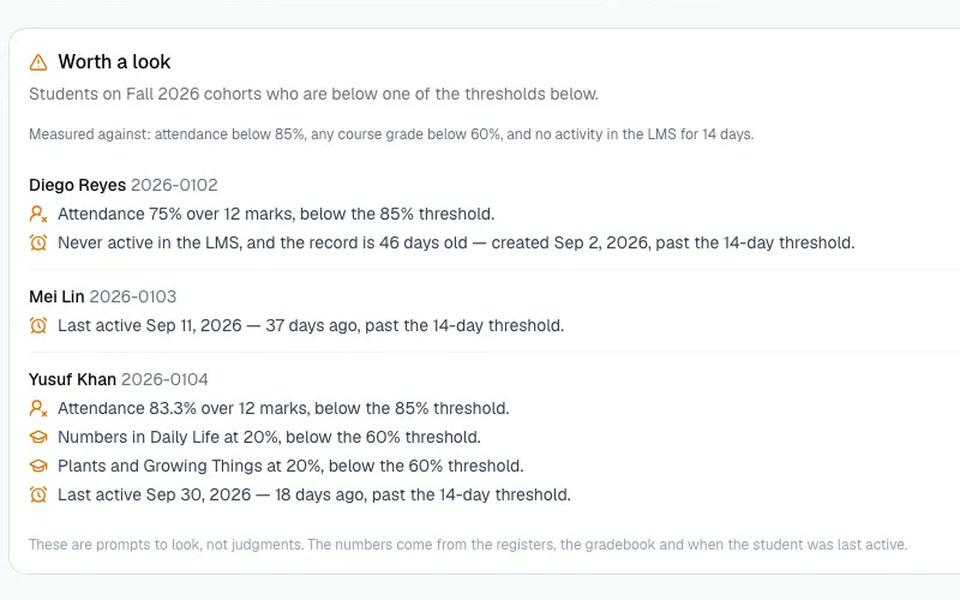
Spot the learners who are slipping while there is still time to help. With EduGears AI SIS switched on, Worth a look names them and shows the numbers behind each flag.
- Worth a look flags attendance below 85%, a course grade below 60%, or 14 days without activity.
- At-risk learners, outcome progress and quiz analysis for one course, through Course Reports.
- A Student Progress record for every learner.
Ask Cog“Who is falling behind in this course?”
5 · Across campuses
The whole estate on one page
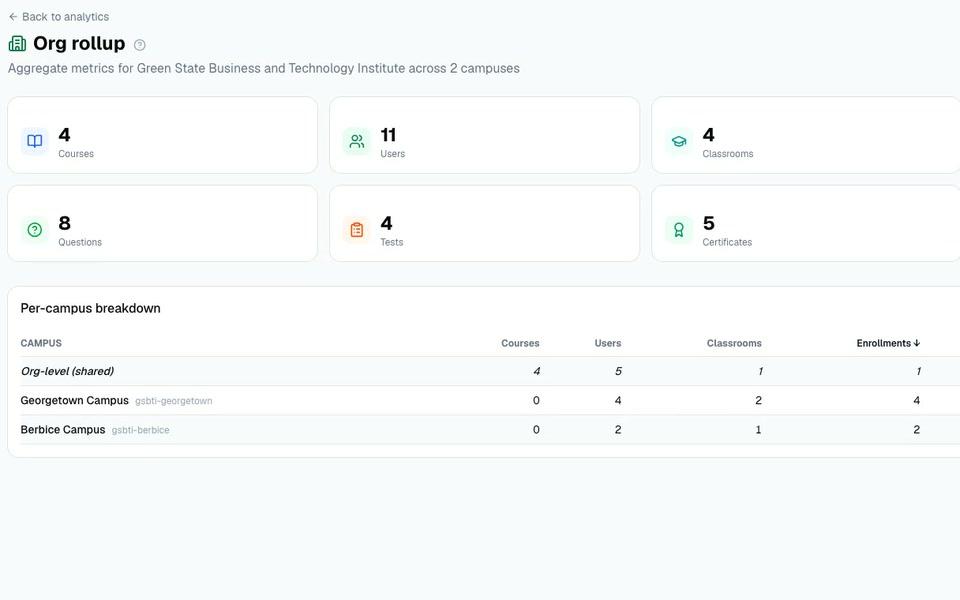
Run more than one campus? The org roll-up adds them all up and puts each campus side by side.
- Lifetime totals for courses, users, classrooms, enrollments, questions, tests and certificates.
- A sortable table with one row per campus, and shared content in its own row.
- Sort the table by any column to compare campuses.
Ask Cog“Which campus has the most enrollments?”
6 · Any time
Ask instead of digging
Cog Insights, the AI agent in EduGears AI LMS, answers plain-language questions from your own reports and dashboards.
- Read-only: it reads your reports and never changes anything.
- For staff, and only within the asker's own permissions.
- An administrator can switch it off.
Questions staff ask
- Which classes are behind?
- How did enrollment change this month?
- How many certificates did we issue this term?
What stays true
Numbers you can trust, seen by the right people
Everyone sees their own slice
Owners see the whole academy, instructors see their own courses, and learners see only their own work.
People make the calls
Flags are prompts to look, not judgments. No grade reaches the gradebook until it is marked.
Your numbers leave with you
Every built-in report exports as CSV, PDF or PNG, and gradebooks export as CSV.
Each academy kept apart
Row-level security in the database keeps every academy, and every campus, to its own rows.
Analytics questions
Who can see the analytics?
Owners and administrators see the whole academy. Instructors see only the courses they teach. Learners don't see the Analytics page; they get their own dashboard and a view of four reports that shows only their own work.
Can we export reports?
Yes. Every built-in report exports as CSV, PDF or PNG, the Tutor Questions report exports as CSV, and course and program gradebooks export as CSV.
Does EduGears AI LMS flag learners at risk?
Yes, in two places. With EduGears AI SIS on, Worth a look flags learners with attendance below 85%, a course grade below 60%, or 14 days without activity. For a single course, Course Reports opens the embedded AI tools' reports, including at-risk learners, outcome progress and quiz analysis.
How does reporting work across several campuses?
Organization accounts get an org roll-up: lifetime totals for courses, users, classrooms, enrollments, questions, tests and certificates, and a sortable table that compares each campus.
Can staff ask questions about the numbers in plain words?
Yes. Cog Insights answers from your own reports and dashboards. It is read-only, answers within the asker's own permissions, and an administrator can switch it off.
See your academy's term in numbers
Book a demo and see the dashboards, reports and marking queue for yourself.
Keep exploring
Assessment & grading
From your own material to the gradebook, with AI marking against your rubric.
EduGears AI SIS
Attendance, report cards and Worth a look, in the same platform.
AI Agents
How Cog Insights answers questions from your own reports.
All features
Everything in EduGears AI LMS, on one page.