Assessment & grading
AI grading and assessment in your LMS, from your material to the gradebook
Build quizzes from what you already teach, let AI mark against your rubric, and keep every grade, transcript and certificate in one place.
Quizzes, question banks, rubrics, AI Grading and Integrity Check are EduGears AI Tools, built into the LMS over LTI 1.3. The gradebooks, the marking queue, transcripts and certificates belong to the LMS itself.
1 · Before the term
Start from the material you already teach
- Through the built-in AI tools
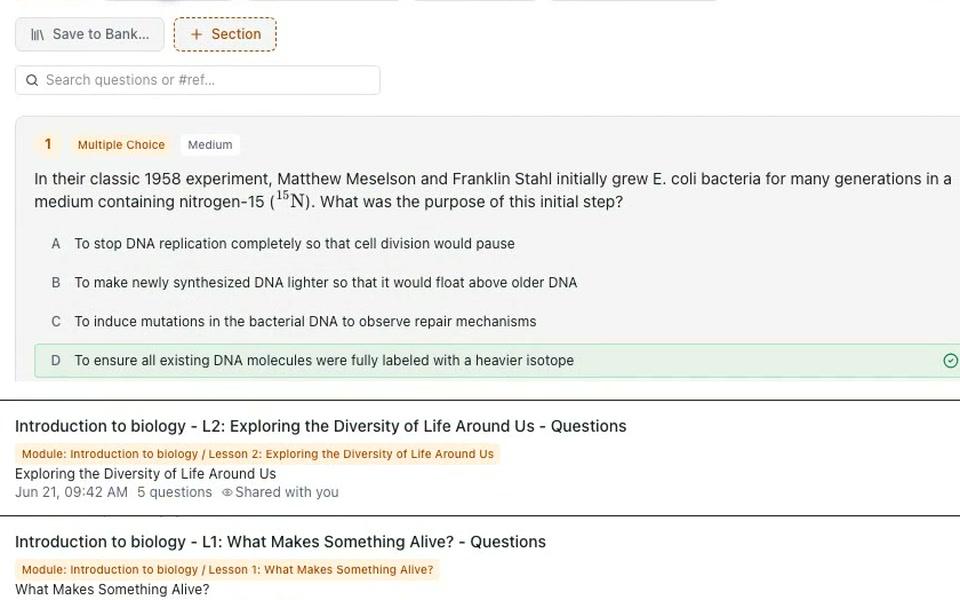
Give the AI Question Generator a topic, your notes, a document or a YouTube video, and it writes questions to match. With Curriculum Intelligence on, it works from your own course materials.
- AI Question Generator: ten question types, from multiple choice and short answer to essays and matching grids, at easy, medium or hard.
- Curriculum Intelligence grounds the questions in your PDFs, Word files and slides, and shows which materials it used.
- Question banks keep reusable pools by category and difficulty, and import Moodle XML, Canvas QTI and CSV.
2 · Setting the quiz
Give every student a fair paper
- Through the built-in AI tools
- Built into the LMS
Decide when the quiz opens, when it is due and when it closes. Draw questions at random from a bank, so students sit different questions.
- Open, due and close dates, checked when a student launches the quiz. Late work is still accepted, and labelled late.
- Random question draws per student: a Question Group picks a set number of questions from a bank for each attempt.
- Section panels put one shared passage or case above a run of questions, for case-based questions.
3 · On the day
A calm place to sit the quiz
- Through the built-in AI tools
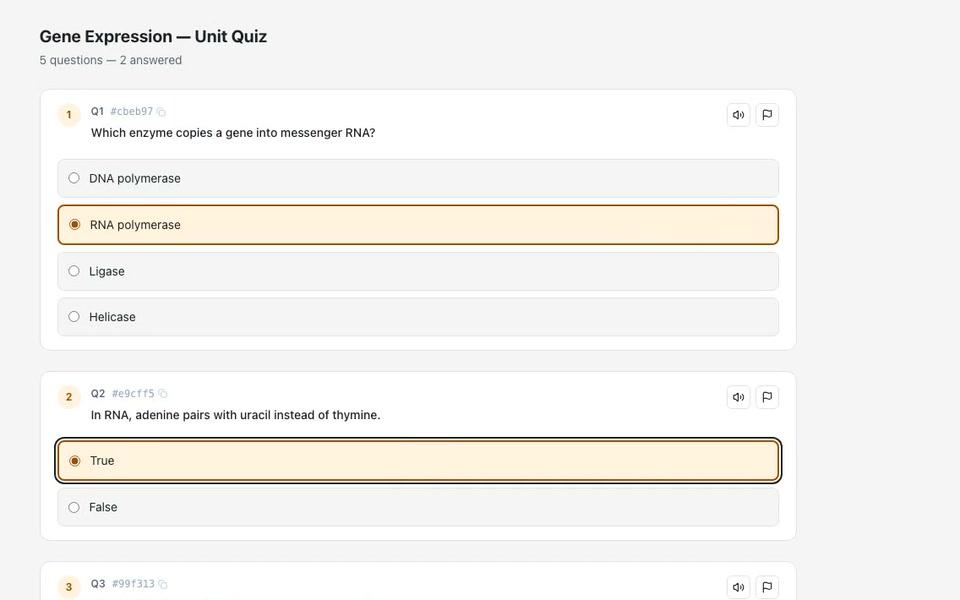
Students see how many questions they have answered and can flag any to come back to. After they submit, the results screen shows their score, the correct answers and the explanations.
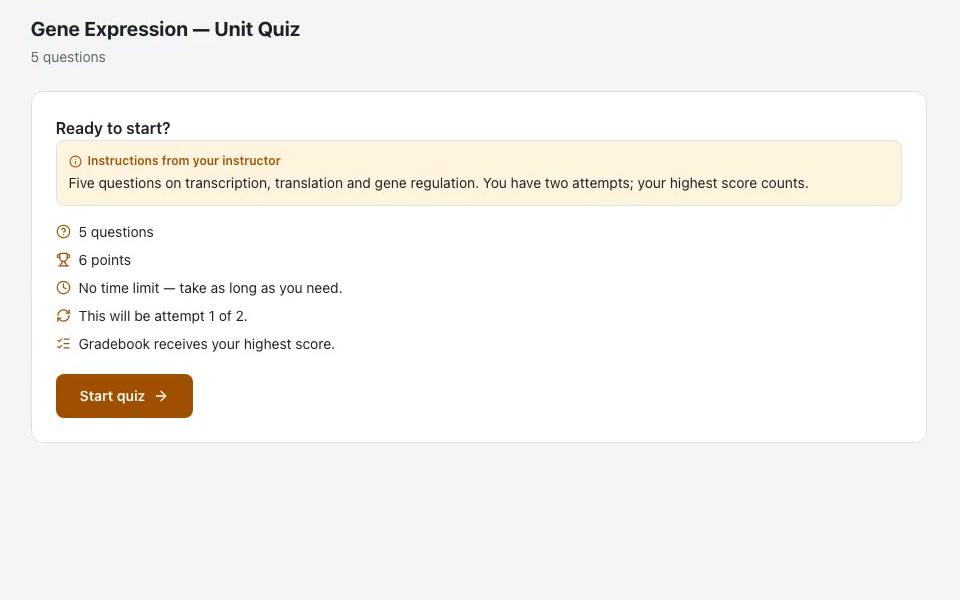
- Choose the attempts (1, 2, 3, 5 or unlimited), a time limit, and whether the highest, latest or average score counts.
- Retakes can build on the last attempt: right answers stay, and wrong ones are cleared and marked “Incorrect last time”.
- Practice sets are ungraded: unlimited tries and check-as-you-go, with nothing sent to the gradebook.
4 · After they submit
AI marks against your rubric
- Through the built-in AI tools
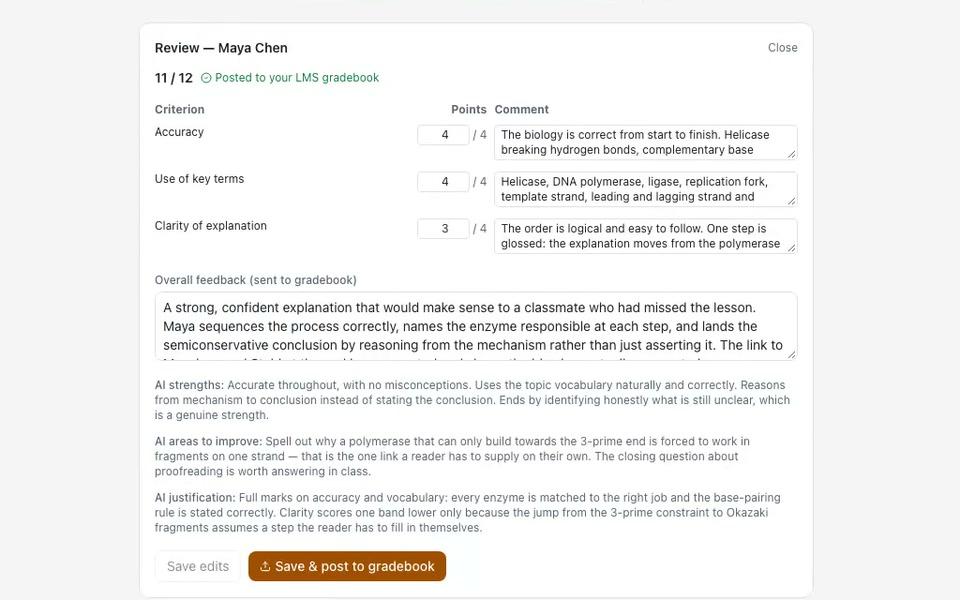
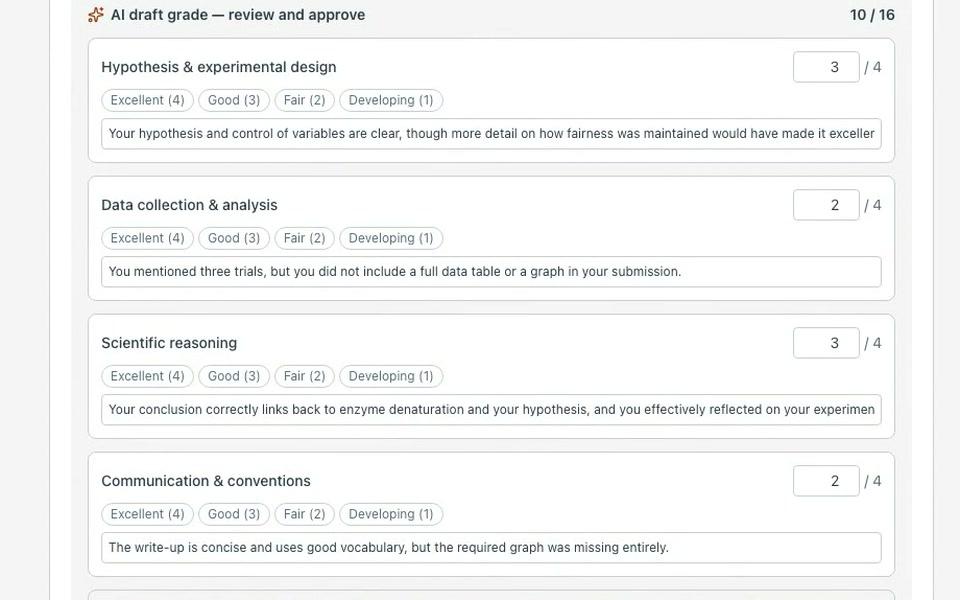
Attach a rubric, and AI Grading scores each criterion and writes feedback the student can act on. It reads written answers, project write-ups and the files students hand in.
- Quiz essays and short answers, project write-ups with their files, and documents, images, audio or video you upload yourself.
- Scanned or photographed handwritten work, marked against your rubric.
- A score and a comment for every criterion, plus strengths, areas to improve and the reasoning behind the mark.
- Draft a rubric with AI: you get a draft to edit, and nothing is saved until you create it.
Further reading
5 · Before grades go out
You stay in charge of every mark
- Through the built-in AI tools
- Built into the LMS
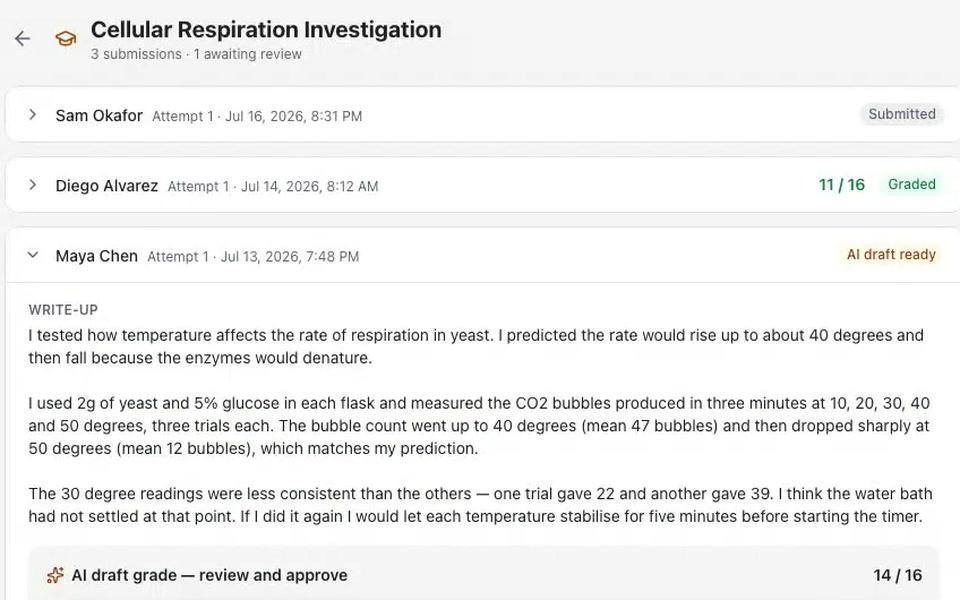
AI drafts the mark. You read it, adjust any score, and approve before anything posts. Work that needs a person waits in one queue, oldest first.
- Awaiting Marking lists every submission waiting on a person, oldest first, with how many days it has waited.
- Staff get an email when work needs marking.
- No grade reaches the gradebook until it is marked. Until then, the gradebook cell reads “Pending review”.
- Override any mark, and the new score is posted again.
Ask Cog“What is still waiting to be marked?”
Further reading
6 · When something looks off
Integrity signals, not verdicts
- Through the built-in AI tools
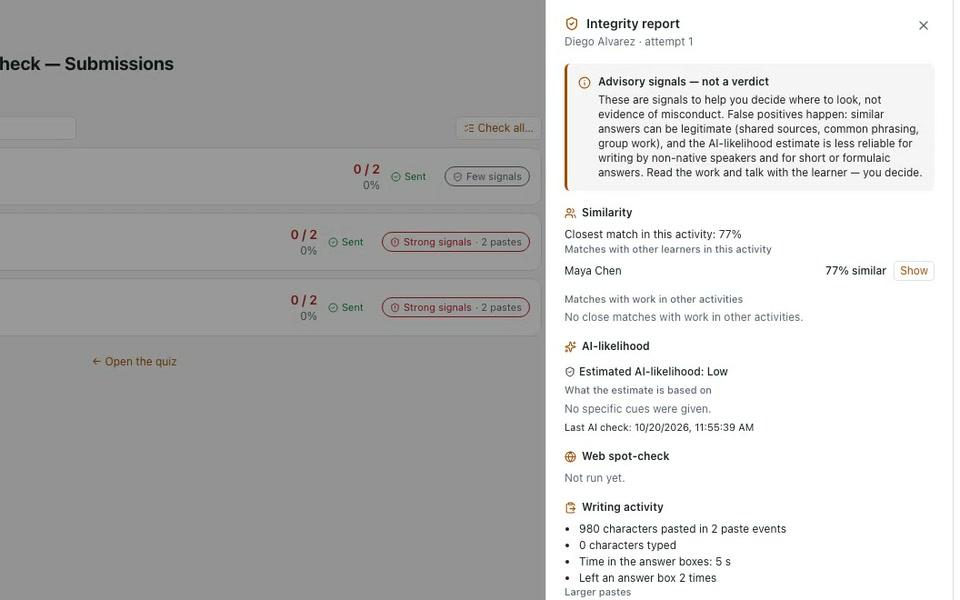
Integrity Check gives you signals on written quiz answers, to help you decide where to look. It never changes a score. You read the work and decide.
- A free similarity scan of written answers of 200 characters or more, against classmates and earlier work.
- Writing activity: counts and timings, such as pasted characters, never the text itself. Students are told.
- An AI-likelihood check when you ask for one. Only instructors see the signals.
7 · Where grades land
Grades land where you already look
- Built into the LMS
Marked scores from the AI tools land in the course gradebook. Your category weights turn them into one course grade, and report cards, transcripts and certificates all read that same grade.
- Course gradebook: students by graded activity, a weighted overall grade, your own category weights, and CSV export.
- Program gradebook: every learner across every course in a program, weighted by credits, with CSV export.
- A branded PDF transcript for every learner. Admins can pull anyone's; learners download their own.
Course gradebook
Example| Learner | Homework25% | Midterm25% | Final50% | Overall |
|---|---|---|---|---|
| Learner A | 88% | 84% | 86% | 86% |
| Learner B | 80% | 76% | Pending review | 78% |
| Learner C | 96% | 88% | 92% | 92% |
8 · After the quiz
See which questions tripped them up
- Through the built-in AI tools
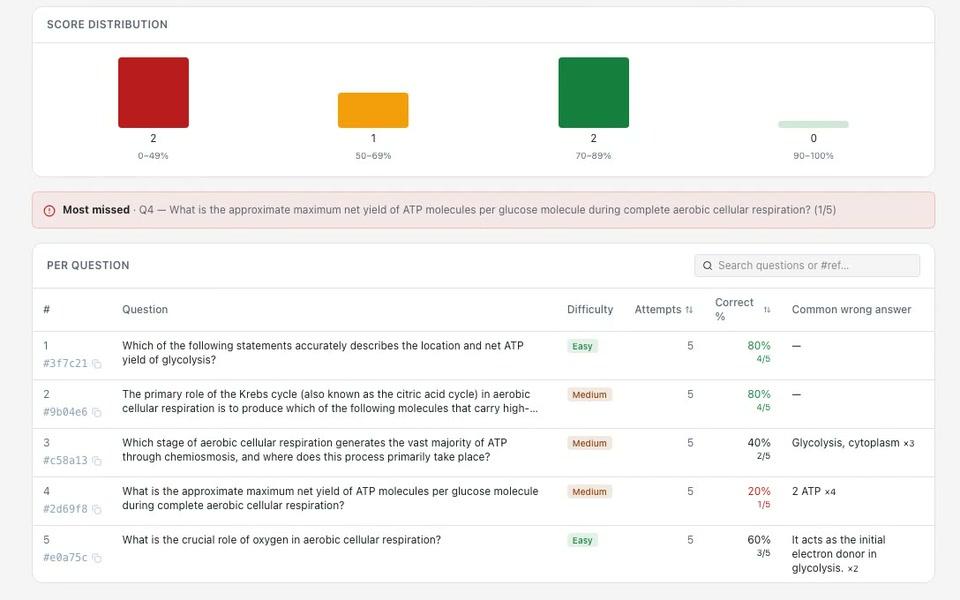
Quiz analysis shows the spread of scores, the most-missed question and the wrong answer most students chose, so you know what to teach again.
- Score distribution, the correct rate for each question, and its most common wrong answer.
- Found under Course Reports, the AI tools' reports for a single course.
- A Diagnostic Pre-Check shows what students already know before you teach, and never posts to the gradebook.
9 · At the finish line
Finish with a certificate that checks out
- Built into the LMS
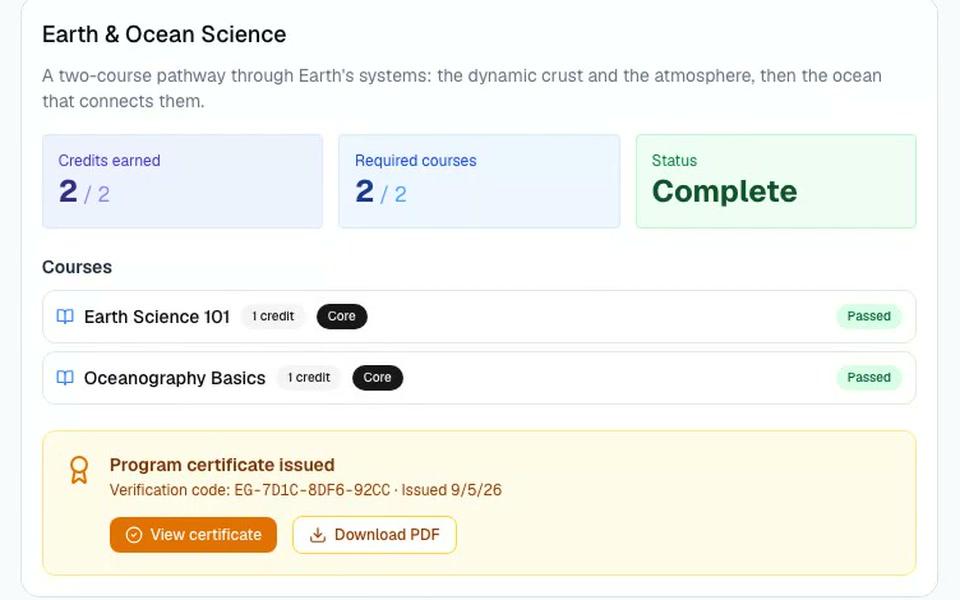
Programs group courses into a pathway with credits. When a learner qualifies, their certificate carries a code anyone can check on your public verification page.
- A course certificate needs every graded activity marked and the weighted grade at or above your pass mark.
- Turn on automatic certificates for a course, or issue to everyone eligible in one step.
- A program certificate on the rule you set: every required course passed, or every course certificate held.
What stays true
Fair marks, made by people, kept for good
You make the call
AI drafts marks and rubrics for you to review and adjust. Integrity signals never change a score.
Grades never jump ahead of the marking
Open answers wait in Awaiting Marking, and the gradebook shows “Pending review” until they are marked.
Open standards
The AI tools connect over LTI 1.3. Question sets export as QTI 2.1 or Moodle XML, and gradebooks export as CSV.
Records that last
Grades and certificates stay on the learner's record, even after they leave a classroom.
Assessment and grading questions
Does EduGears AI LMS grade with AI?
Yes, through the EduGears AI Tools built into the LMS. AI Grading marks written answers, projects and uploaded work against your rubric, criterion by criterion, with feedback for the student. You approve before anything posts, and any mark can be overridden.
Can it mark handwritten work?
Yes. Scanned or photographed handwritten work is marked against your rubric. Upload it as an image or document in AI Grading, or a student attaches it to a project.
Can each student get different questions?
Yes. A Question Group draws a set number of questions at random from a bank for each attempt, so students sit different questions when the bank holds more than the group draws.
Does Integrity Check accuse students of cheating?
No. It shows advisory signals to instructors only: similarity on written answers of 200 characters or more, writing activity, and an AI-likelihood check when you ask for one. It never changes a score; you read the work and decide.
Where do the grades go?
Into the course gradebook, weighted by the categories you set, and from there into program gradebooks, transcripts and certificates. Gradebooks export as CSV.
Can we bring our question banks from Moodle or Canvas?
Yes. Question banks import Moodle XML, Canvas QTI and CSV, and the import preview lists any question types it skips.
See a quiz go from your notes to the gradebook
Book a demo to see the AI tools, the marking queue and the gradebooks for yourself.