Student Progress Tracking: The Whole Learner on One Page
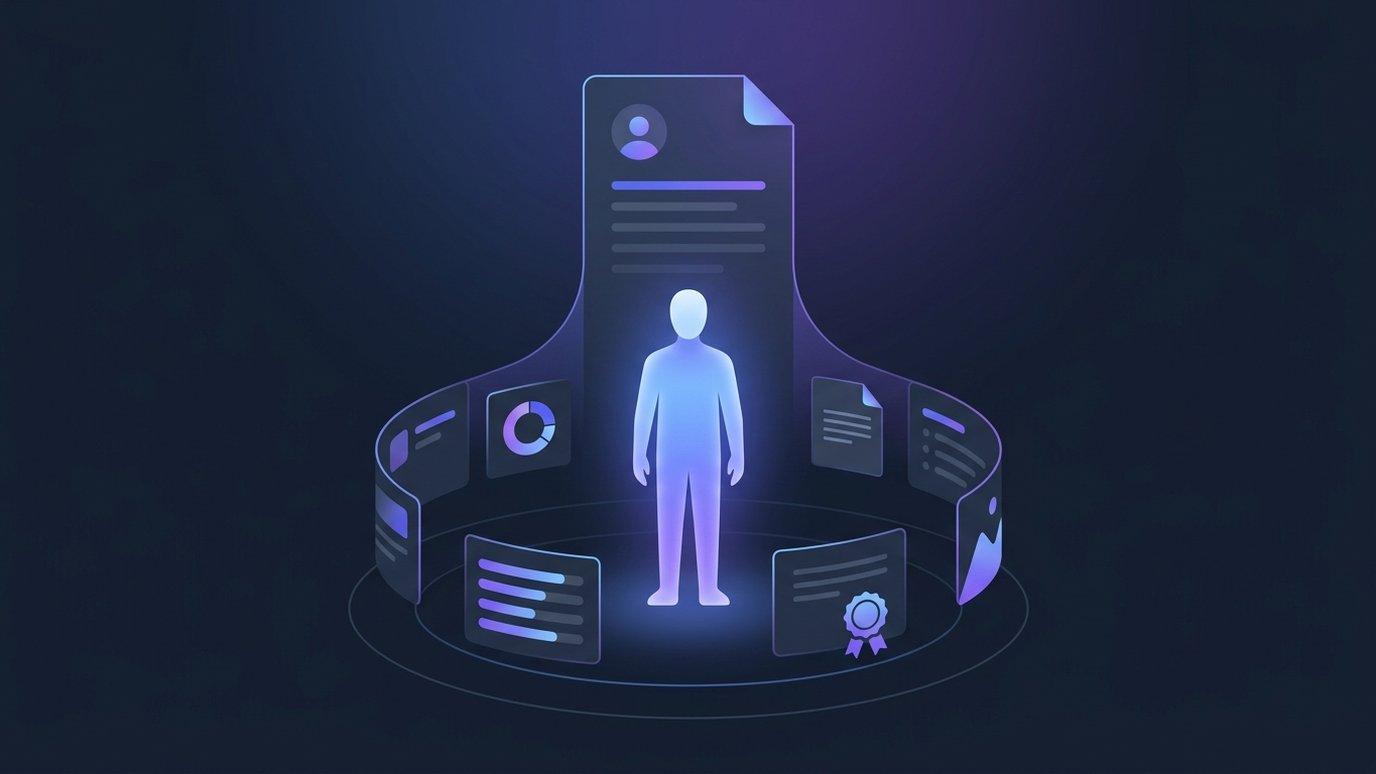
Three questions get asked about a learner more than any others. Is this person on track? Why is their grade what it is? What did they actually submit? In most learning platforms all three are answerable — just not in one place. You open the roster, then each program, then each course gradebook, then the quiz itself, and you join it together by eye and by memory.
That's not a reporting gap. It's a shape mismatch. Gradebooks are organized by course, submission views by assessment, dashboards by cohort — every one of them is course-shaped, and the question you're asking is person-shaped. Student 360 in EduGears AI LMS turns the same data ninety degrees: student progress tracking organized by person rather than by course — one learner, top to bottom, on a single page.
Why is one learner's record so hard to assemble?
Because every grade surface in a learning platform is organized by course or by assessment, while the question being asked is organized by person — so answering it means visiting four or five screens and joining them by eye. It's worth being precise about what that costs, because "we already have reports" is a fair objection. Reports answer questions you anticipated. A learner conversation almost never is one.
| The question | Where you used to go | What it cost |
|---|---|---|
| Is this learner on track for their qualification? | The program, then each course in it, then the roster | Several screens, and no single view of which courses are passed |
| Why is their overall grade 64%? | The course gradebook, one row scanned across many columns | Reading one row of a wide matrix, per course, per classroom |
| What did they actually answer on question four? | The course, the activity, the tool, the attempt | Four navigations, and the context lost at each hop |
| Which certificates do they hold, and are any expired? | The certificates list, filtered by person | A separate screen with a separate filter |
Every one of those answers already existed in the platform. The work was joining them — and joining by eye is where the mistakes come from, especially when a classroom carries more than one course and the numbers on two screens are calculated slightly differently.
What is on a Student 360 page?
A Student 360 page in EduGears AI LMS holds one learner's entire record: who they are and which classrooms they're in, every program enrollment, every course they take with its grade and pass mark, every graded activity, the attempts and answers they submitted, their progress through the learning materials, and the certificates they hold. There are two ways in, both one click from where the question is usually asked: the chart icon (View progress) on someone's row in Users, and a student's name in the Enrolled students card of a program. From there the page reads top to bottom:
- Who they are. Name, email, role, the classrooms they belong to — each one clickable — and four summary tiles: Active programs, Courses passed, Overall average, and Last activity.
- Programs. One card per program enrollment, carrying the enrollment status, Core courses passed, Credits, the program certificate, and one row per course in the program chipped Passed, In progress, or Not started.
- Courses and activities. Every course the learner takes through a classroom, with its Overall grade, its Pass mark, and a table of the activities they have been graded on — activity, type, score, date.
- The work itself. On a quiz row, Show attempts opens the attempts in place: score, percentage, submission date, newest first — and expanding an attempt shows every question with the learner's own answer.
- Learning materials. Each module with its required-lesson count, whether it completed, and whether a completion grade was posted — plus anything else the tools recorded that has no graded row.
- Certificates. Every certificate they hold, with its code, issue date, and status.
Withdrawn program enrollments and dropped classroom enrollments are on the page too. The row is the record — a learner who left a program is part of their history, not an embarrassment to be hidden.
What do the charts show?
Three charts summarize the record before any table appears: a Courses by status donut, a Course scores bar chart, and — inside a quiz's attempts — an Attempt scores line. A wall of rows is a report; a shape you can read in two seconds is an answer. The donut tells you the spread of passed, in-progress, and not-started work; the bar chart tells you whether the scores are level or lumpy.
The third one is the chart that changes conversations: the Attempt scores line traces a learner's score across repeat attempts at the same quiz. A learner who went 42% → 58% → 81% is a completely different story from one who went 81% → 58% → 42%, and the two are indistinguishable if you only ever look at the latest score.
None of the charts introduce numbers of their own. They are drawn from the same rows printed underneath them, which is the reason it's safe to read the picture and skip the table.
Can you see the learner's actual answers?
Yes — the submitted work opens inside the record rather than sending you off to find it. On a quiz row, Show attempts lists each attempt newest first with its score, percentage, and submission date; expand one and you get every question, the learner's own answer, a Correct / Incorrect / Awaiting review chip, and any AI feedback or expected answer the quiz recorded at marking time.
That matters for two audiences. For an administrator fielding a grade query, the evidence is right there — no request to a trainer, no screen-share, no "I'll check and get back to you." For an instructor, the question which item the learner missed is answered without opening the assessment tool at all. A question carrying a # reference can be copied with one click, which is the quickest way to ask a colleague about one specific item.
The attempts, the answers, and the lesson-by-lesson progress belong to EduGears AI Tools, which runs the quiz and module players — so this page is showing you the tool's own record, not a copy of it. It's fetched one course at a time, the first time you expand anything in that course. If a fetch fails, that one course says Try again and the rest of the record stays readable, which is the right failure mode for a page someone is reading with a learner on the phone.
Curious what your own learner records would look like on one page? We'll open a live tenant and walk a real record end to end.
Book a demoIs this the same grade the transcript shows?
Yes — it's the same category-weighted course grade the gradebook, the learner's report card, the transcript PDF, the certificate check, the dashboards, and the reports all read. That's a harder promise than it sounds: an overall grade can be computed by a gradebook one way and by a certificate check another way, and the two quietly disagree until a learner notices.
So the figures here aren't recomputed for the page. The course rollups, the per-course pass/fail, and the weighted overall all come from the same definitions the rest of the platform uses. A number on Student 360 can't disagree with the screen it links to, because it is that screen's number.
The overall course grade is the category-weighted one — each course sets weights for homework, assessments, midterm, final exam, and project, and each graded activity is filed into a category in the gradebook independently of what type of activity it is. It's compared against that course's own pass mark, which is 60% when a course doesn't set one. A course only counts as Passed for a program when its own overall grade clears its own pass mark.
The same weighted number feeds the report card the learner sees, the transcript PDF, the certificate check, the dashboards, and the reports. One definition, read in six places — rather than six definitions that happen to agree today.
If you want the durable, printable version of the same record, that's the transcript — a branded PDF covering every enrollment, result, credit, program, and certificate. We wrote about why an academic record should outlive a roster change in Learner Transcripts: Why Your LMS Should Never Forget a Grade. Student 360 is the working view of the same truth; the transcript is the one you hand to someone.
What do “Not started” and “No learner content” mean?
They are the states a progress view uses instead of pretending everything is a percentage: Not started means the learner never opened it, and No learner content means there was nothing there for them to do. The temptation is to render everything as a number, because numbers look complete. The problem is that a zero and a not-yet-attempted look identical once they're both bars on a chart — and one of them is a judgment about a learner that nobody made.
- Not started never counts against the learner. On a program course it usually means there's no classroom enrollment for that course yet — so check the classroom before assuming the work wasn't done.
- No learner content is left out of the required-lesson count rather than counted as a miss, because a module with nothing in it isn't something anyone failed to do.
- Awaiting review means an answer that a human still has to mark — common on essay and open-ended items. It's shown as pending, not as wrong.
- No completion grade posted means every required lesson is done but the completion never fired, so nothing reached the gradebook. That's a real state worth surfacing, and it's invisible in a plain percentage.
- The activity table lists only work that has been graded. An activity with no row has no grade on record for this learner — which is different from a zero, and says so.
This is the same principle that governs weighted grading elsewhere in the platform: a category with nothing graded in it is left out of the total rather than scored as a zero, so a learner is never marked down for work nobody has set. Honest empty states are less flattering in a screenshot and considerably more useful in a conversation.
Can grades be changed from the page?
No — nothing on the page changes an enrollment, a grade, or a certificate. That's deliberate: a screen designed for reading a record shouldn't offer a one-click way to alter it, especially when the people reading it most often — administrators handling a query — aren't the people who own the mark.
There is exactly one way out. Open marking view takes you into the course, where an instructor can override or regrade — and where the gradebook's own editable cells let a mark be entered by hand when work happened offline. Fixing a grade is a deliberate trip to the place that owns it, not a side effect of looking something up.
Access follows the same logic. Owners, admins, and instructors can open the page; students are sent to My Programs, their own view of the same facts, and the underlying endpoint refuses them independently rather than trusting the screen. In a multi-campus organization the record stays inside its own campus, because the isolation is enforced in the database — the mechanism we described in How to Run a Multi-Campus Academy (or Client Portals) on One LMS.
One last note on what this is not. It isn't an AI feature. There's no model summarizing the learner, no generated narrative about their prospects, nothing inferred. Where AI feedback appears, it's the feedback the assessment recorded when it marked the work — which is a fact about the marking, not a new opinion about the student. If you want the argument for why grading belongs inside the platform that holds the record in the first place, that's AI Grading in a Full LMS vs. Standalone Grading Tools.
Bring a real question — a learner query, an audit, a progress review — and we'll answer it live on a branded tenant.
See the platformFAQ
What is a Student 360 view in an LMS?
A Student 360 view is a single page organized by learner rather than by course. In EduGears AI LMS it holds the programs a learner is enrolled in, every course they take through a classroom with its overall grade and pass mark, every graded activity, the attempts and answers they submitted, the modules they worked through, and the certificates they hold. Every other grade screen in an LMS answers a course-shaped or assessment-shaped question; this one answers "what has this person done?"
Can I see a learner's actual answers, not just their score?
Yes. On a quiz row, Show attempts lists each attempt with its score, percentage, and submission date, and expanding an attempt shows every question, the learner's own answer, a Correct / Incorrect / Awaiting review chip, and any AI feedback or expected answer recorded at marking time. It opens in place, so you never leave the record to see the evidence.
Do the numbers match the gradebook and the transcript?
Yes — they are the same numbers, not a second calculation. Course rollups, per-course pass or fail, and the weighted overall come from the platform's single grade definition rather than being recomputed for this page — the same figure the gradebook, the learner's report card, the transcript PDF, the certificate check, and the reports all read. The overall is category-weighted and compared against that course's own pass mark (60% if the course doesn't set one).
Who can open a learner's Student 360 page?
Owners, admins, and instructors. Students are sent to My Programs — their own view of the same facts — and the underlying endpoint refuses them independently of the screen. In an organization with campuses, the record stays within its own campus, enforced by row-level security in the database rather than by an application filter.
Can grades be changed from the page?
No. The page is read-only by design. Open marking view is the one route out: it opens the course, where an instructor can regrade, override, or enter a mark by hand in the gradebook. Enrollments are changed on the program or the classroom, not here.
What happens to a learner who withdrew or was dropped?
They stay on the record. Withdrawn program enrollments and dropped classroom enrollments are both included, with the grades earned before the change. The history of what a learner did is the reason the page exists, so nothing is hidden once someone leaves.
See your academy on EduGears AI LMS
Book a demo and we'll show you a live tenant branded as your academy — your name, your colors, your domain.
Book a demo →