Learning Outcomes and At-Risk Alerts: Evidence Per Outcome, and No Surprises at Finals
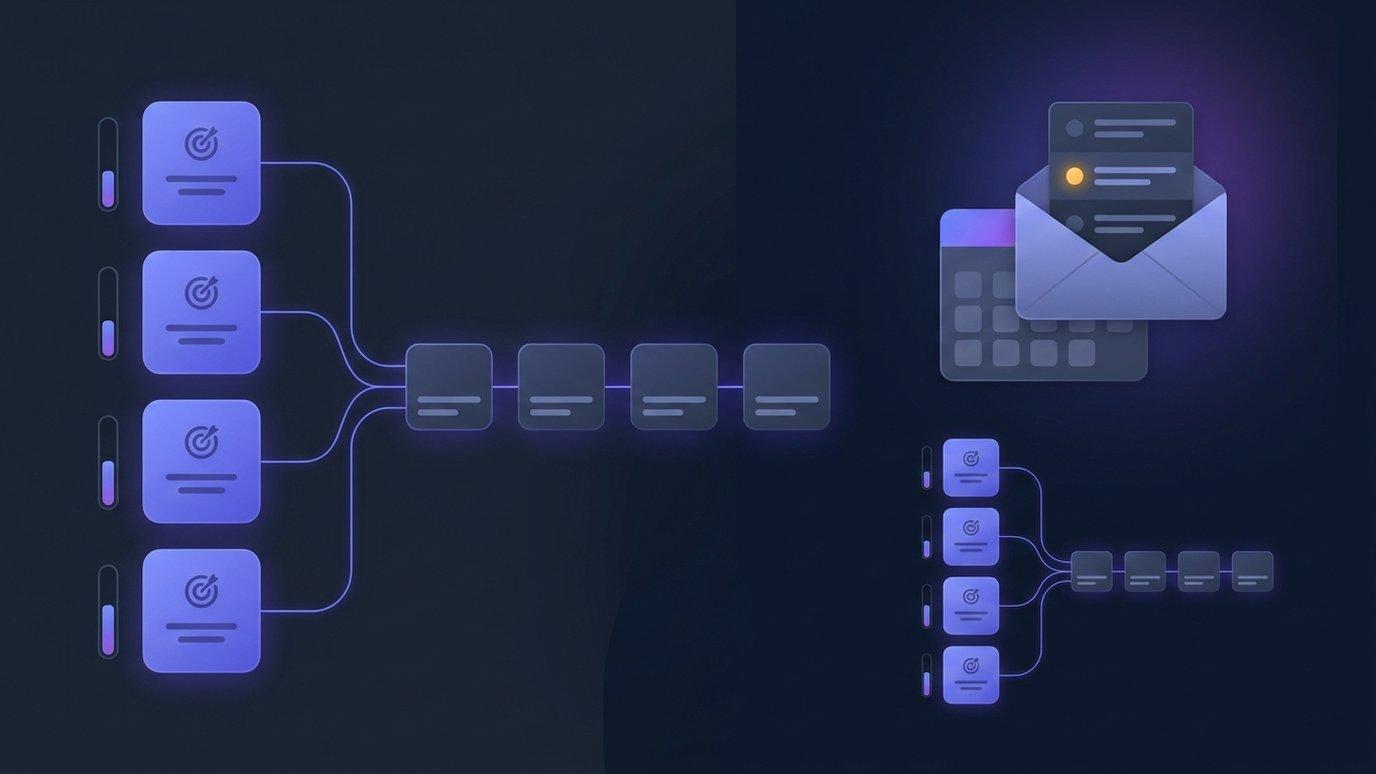
Ask an instructor what their course is for and you will get a good answer. Ask where that answer is written down and you will usually be pointed at a course description, a syllabus PDF or an accreditation document — a list of learning outcomes that was carefully drafted once and has not been connected to anything since. Which module teaches the third outcome? How are learners doing against it? Nobody can say without an afternoon and a spreadsheet.
The second gap is quieter and more expensive. A learner stops logging in in week four. Their quiz scores were already sliding. Nothing tells anyone, because the signal only exists on a dashboard that somebody has to remember to open, and the first time the problem becomes visible is the final — when it is too late to do anything but record it.
Two gaps every course has
Both gaps have the same shape: the information exists, but it is not where the instructor is. Outcomes are trapped in documents with no evidence attached. At-risk signals are trapped on a screen with no one looking at it. The AI tools inside EduGears AI LMS courses now address each one directly, and both live on the same per-course settings page instructors already use for the AI tutor.
Outcomes that belong to the course
Each course can now hold its own list of learning outcomes — what students should be able to do by the end of it. An instructor writes one outcome per row, starting with what learners will be able to do (“Explain how enzymes speed up chemical reactions”), with an optional code for the institution's own label, such as LO1. Rows can be reordered and deleted, and nothing is saved until the instructor selects Save outcomes.
Then comes the step that makes the list useful: each outcome is mapped to the modules that teach it. Only the course's own modules are offered, so the map is always a map of this course. An outcome with no modules mapped is simply flagged as not mapped — which is often the most useful thing an outcomes review can tell you.
An AI draft, from your own materials
Writing outcomes from scratch is slow, and a blank list is where good intentions go to wait. So there is a Draft with AI button. It suggests up to eight outcomes drawn only from the course's own Curriculum Intelligence documents — the syllabi, notes and materials the instructor has uploaded — which is why it stays unavailable until the course has at least one ready document. It does not invent a course from general knowledge.
The AI drafts; the instructor owns the outcomes. Suggestions arrive at the end of the list marked “AI draft”. The instructor edits them, maps them, deletes the ones that miss — and nothing is kept until they select Save outcomes. Discard AI drafts throws the whole suggestion away.
Writing outcomes by hand is always available. An administrator who would rather not have the AI draft at all can switch that one feature off for the organization, and the rest of the outcomes editor keeps working exactly as before.
A tutor that knows what the course is for
Once a course has outcomes, the AI tutor receives them with every learner's question and frames its explanations against them. A learner asking about a worked example gets help that points back at the goal the example exists to serve, rather than an explanation floating free of the course's purpose.
This is framing, not a change in what the tutor is allowed to answer. A course set to strict grounding still answers only from its own materials and still declines what falls outside them; outcomes shape how the tutor explains, never where its answers come from. A very long outcomes list is shortened for the tutor so it keeps its attention on the question in front of it.
Evidence per outcome, not a mastery badge
The Outcome Progress report turns the mapping into something an instructor, a program lead or an accreditation reviewer can read. It has one row per outcome, in the instructor's order, with:
- Mapped modules — which parts of the course teach it;
- Students engaged — how many learners have progress in those modules;
- Average progress — average lesson completion across the mapped modules;
- Average score — the average of submitted quiz attempts in those modules' lessons;
- Not mapped — raised for any outcome with no modules behind it.
It can be filtered by outcome or by module, and instructors' own previews are left out so they do not inflate the numbers. We are deliberate about what this report claims. It shows activity in the content mapped to each outcome — evidence, not certified mastery. A strong row says learners engaged with and scored well in the modules that teach the outcome; the judgment about whether the outcome was achieved stays with the educator. That is the honest version, and it is the version that holds up when someone asks how the number was made.
At-risk alerts, by email, when you want them
The AI tools' Dashboard already has an At-risk students card, flagging learners who are inactive, scoring low, behind pace, or having most of their tutor questions declined, against thresholds each course sets. The card only helps when someone opens the Dashboard. Now it can come to the instructor instead.
Each course has an Email alerts setting: Off (the default), Daily or Weekly. Switched on, the course's teachers receive a digest of the students the course's saved thresholds flag — the same students the card counts and the At-Risk Learners report lists, so the email, the card and the report never disagree. Each student is listed with the signal that flagged them, such as “Inactive for 12 days”, and students who are new since the previous digest are marked NEW, so a long-running concern and a fresh one do not look the same.
When nobody is flagged, no email is sent. A digest that arrives every week saying “nothing to report” trains people to stop reading it; one that only arrives when there is someone to look at keeps its meaning.
- Opt-in, per course. Alerts are off until an instructor switches them on for that course. One course's choice does not change any other.
- The course's own thresholds. What counts as inactive, low-scoring or behind is what the course has saved — a self-paced course and a tightly scheduled one are not held to the same idea of “behind”.
- English for now. The digest email is in English today, whatever language the rest of the platform is set to.
- Audited. Switching alerts on or off is recorded with who made the change, and every digest sent is recorded too.
The digest is a prompt to look, not a verdict. It names who to check on and why; the conversation with the learner is still the instructor's.
A new term carries it all along
Outcomes are the kind of work nobody wants to redo every term, and most academies do not build a new course each term — they copy last term's. Copying a course setup now brings the learning outcomes along, with their module mappings pointed at the copied modules, together with the at-risk thresholds and the email alert setting. The new cohort's course starts with the same outcomes, the same evidence report ready to fill, and the same early-warning setup, from its first day.
One sensible exception: if the course being copied into already has its own outcomes, they are left alone rather than overwritten.
Where it lives
Both features sit on the Course Settings page of the AI tools inside each course — in EduGears AI LMS, you open it from the course's own Course Settings, on the AI & Tutor tab. The Learning outcomes section and the at-risk thresholds with their Email alerts setting sit beside the AI tutor and AI marking settings, each saved with its own button, and only teachers can open the page. The Outcome Progress and At-Risk Learners reports are in the same tools' Reports. Every save on the page is recorded with who made it and what changed.
Bring a syllabus and a course you already run. We'll draft its outcomes from your own materials, map them to modules, open the Outcome Progress report, and switch on a weekly at-risk digest so you can see exactly what your teachers would receive.
Book a demoFAQ
Where do we set a course's learning outcomes?
On the Course Settings page of the AI tools inside the course — in EduGears AI LMS, opened from the course's own Course Settings, on the AI & Tutor tab. Only teachers can open it. Write outcomes yourself, or use Draft with AI, then map each one to the modules that teach it and select Save outcomes.
Does the AI decide our outcomes?
No. Draft with AI suggests up to eight outcomes from the course's own Curriculum Intelligence documents. They arrive marked as AI drafts for the instructor to edit, map or delete, and nothing is saved until the instructor saves it.
Does the Outcome Progress report certify that learners achieved an outcome?
No. It shows evidence from the modules mapped to each outcome — students engaged, average progress and average quiz score. It is evidence, not certified mastery; the judgment stays with the educator.
Do outcomes change what the AI tutor will answer?
No. The tutor frames its explanations against the course's outcomes, but grounding is unchanged: a course set to strict still answers only from its own materials.
Who receives at-risk email alerts, and how often?
The course's teachers, once an instructor sets Email alerts to Daily or Weekly for that course (it is Off by default). The digest lists flagged students with the signal that flagged them and marks the ones new since the last email. If nobody is flagged, no email is sent. The email is in English for now.
If we copy a course for a new term, do outcomes and alerts come along?
Yes. Copying a course setup brings the learning outcomes with their module mappings, the at-risk thresholds and the email alert setting — unless the new course already has outcomes of its own, in which case those are kept.
See your academy on EduGears AI LMS
Book a demo and we'll show you a live tenant branded as your academy — your name, your colors, your domain.
Book a demo →